
Transaction due dates that calculate themselves.
Stay on track and in compliance with due dates that calculate themselves. Anchor any task to the listing date, acceptance date, option period, contingencies, or closing, and let Paperless Pipeline do the math.
Full access for 14 days. The real product, your real deals, day one.
No credit card. No contract. We set it up with you — free.
G2 4.7/5 · Capterra 5/5 · 1,700+ brokerages
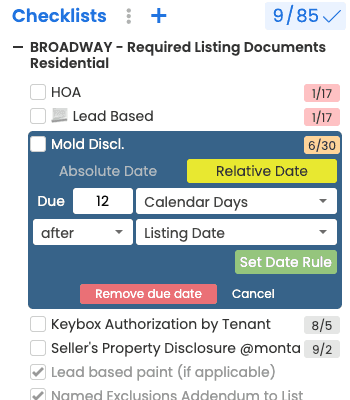
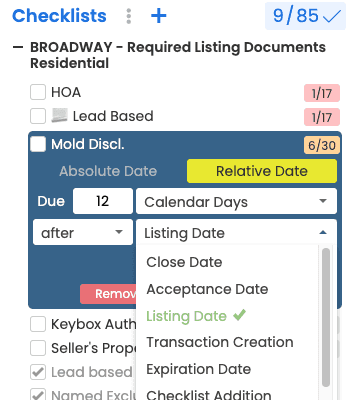
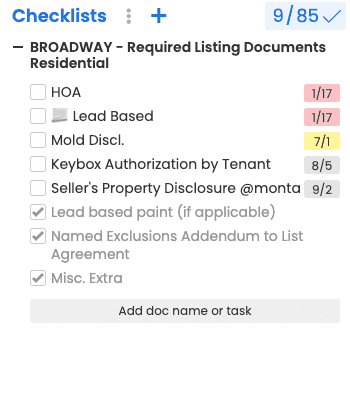
Deadlines that recalculate when life changes.
Push the closing date a week. Extend an option period. Paperless Pipeline reshuffles every dependent deadline so nothing falls through the cracks — and everyone sees the new dates instantly.
- Anchor to listing, acceptance, option, contingency, or closing
- Offset in business or calendar days
- Cascade updates across every linked task
- Skip weekends and configurable holidays
Warnings before something becomes a problem.
Paperless Pipeline pings agents, coordinators, and brokers as deadlines approach — not after they've passed. Configure how loud each notification gets per role.
- Email digests at the cadence each user prefers
- In-app and email alerts for high-priority items, plus one-way calendar sync so deadlines land in the calendar you already use
- Escalation rules when a task goes overdue
- Per-role visibility so brokers see only what matters
See every approaching deadline in one view.
The Tasks page and calendar views show what is due today, this week, and this month across every transaction. Filter by office, agent, or status to spot risk before it bites.
- Tasks page plus calendar views, filterable by office, agent, status, or template
- Color-coded urgency at a glance
- Filter by agent, office, status, or template
- Sync upcoming deadlines to your calendar, or download a task list for stand-ups
Your account is usable on day one.
Most brokerages are fully operational in under a week, with free setup, free admin training, and free transaction import included on every plan.
Pick an anchor
Choose any contract milestone — listing, acceptance, option, contingency, closing — as the source for a deadline.
Set the offset
Add or subtract calendar or business days. Configure which holidays count per office.
Cascade automatically
When an anchor date shifts, every dependent deadline recalculates instantly and notifies the right people.
Stay ahead
The Tasks page and calendar views surface what is due across every deal in flight, sorted earliest-due first.
Built for every role on the transaction.
TCs
Track 40+ deals without missing a deadline.
A single dashboard surfaces what is due today, this week, and next.
Brokers
Spot deals at risk early.
Overdue and at-risk filters bubble up the deals that need attention.
Agents
Know what is on their plate without logging in 10 times a day.
Smart email digests at the cadence each agent prefers.
Having the tasks, due dates and everything automatically calculated based on the information entered made so much sense and it was exactly what we needed. It definitely saves me time!
How Paperless Pipeline compares.
Questions, answered.
Still curious? Our team is one message away.
How do automatic due dates work?
You enter a deal's key dates once and Paperless Pipeline calculates every task deadline from them. On a checklist task you set a relative due date - a number of days before, after, or on a trigger date - and Paperless Pipeline does the math for every transaction the checklist lands on. Set the rule on the template and it carries to every deal, so you are never counting days by hand. See how checklists work.
Which dates can a deadline be anchored to?
You can anchor a task to any of the major contract milestones. The built-in trigger dates are Acceptance Date, Close Date, Listing Date, Transaction Creation, Expiration Date, and Checklist Addition. Turn on optional date fields and you also get triggers like Inspection Due or Date, Loan Approval Due or Date, Appraisal Due or Date, Option Period End Date, and Earnest Money Due or Deposit Date.
What happens to my deadlines when a contract date changes?
Change the anchor date and every deadline tied to it recalculates. Because each task due date is a rule relative to a trigger date - not a fixed date typed in - moving the closing date or extending an option period shifts every dependent task automatically, and the new dates show on the transaction and in everyone's reminders. You never have to reschedule tasks one by one.
Can I count deadlines in business days instead of calendar days?
Yes - you choose how each due date is counted. Paperless Pipeline offers Business Days (which skip Saturdays, Sundays, and your company holidays), Calendar Days (plain days), and Calendar Days Due Business Days (counts by calendar days but bumps the deadline to the next business day if it lands on a weekend or holiday). Weekends are excluded from business-day counts automatically.
Can I set our own office holidays so deadlines skip them?
Yes. A master admin defines your company's Business Holidays by name and date, and Paperless Pipeline excludes them from every business-day calculation. Weekends are already excluded automatically, so you only need to add the holidays your office observes. This keeps deadlines realistic instead of landing on days your team is closed.
How does the team get reminded about upcoming deadlines?
Paperless Pipeline emails a daily reminder of what is overdue, due today, and due tomorrow to everyone allowed to see each task. Agents get their own upcoming and overdue tasks; admins get the full picture, including tasks agents have already checked, highlighted for review. You can also opt individual users in or out of the daily email.
Where can I see every deadline coming up across all my deals?
The Tasks page shows every overdue and upcoming task across all the transactions you can access, sorted by due date. Color tells you the urgency at a glance - red for overdue, yellow for due soon - and you can filter by status, side, agent, key dates, and date range, then save that filtered view as a shortcut. It is the single place to spot risk before a deadline bites.
Can I sync these deadlines to my own calendar?
Yes. From the Tasks page you can sync your current and upcoming tasks to iCal, Outlook, or Google Calendar, and you can sync a filtered set - for example only your key dates - rather than everything. The first sync can take a few hours to populate your external calendar, after which it stays current. See more features.
What is a Key Date and why would I flag one?
A Key Date is a task you mark as a critical milestone so it gets extra visibility. Flagging a task as a Key Date adds a Key Dates and Milestones section to the transaction coversheet, lets you sync just the key dates to a calendar, and makes the date available as an autofill tag for emails and templates. It is the right setting for the dates that absolutely cannot slip.
Transaction due dates is included on every Paperless Pipeline plan, from $69/month, priced on the new transactions you start each month, not per user. Unlimited users, offices and storage. No setup fees, no contracts. The Commission Module is an add-on from $49/month.
Try Paperless Pipeline with your own deals.
Spin up your account in minutes and run your real workflow end-to-end.
14 days, full access·No credit card·Free setup with you
Closing 250+ transactions a year? Request a call